

The trend of Flow Builder improvements continues, and the Salesforce Winter ’23 Release has some exciting updates. For detailed documentation on all of the improvements, follow this link to the Winter ’23 release notes.
Our Favorite Flow Builder Enhancements
- Data Table for Flows (Beta)
- Use ‘IN’ and ‘NOT IN’ to Filter Related Records
- Update Related Records in Record-Triggered Flows
- Cut and Paste Flow Elements
- Up to Four Columns with the Section Component
- Narrow Down Picklist Values by Record Type
- Launch a Screen Flow with a Lightning Web Component
Data Table for Flows (Beta)
We’re pretty excited about this one but will temper our enthusiasm until this feature is officially out of Beta. Displaying data in tabular format in a flow without using a custom component has always been challenging. With the new flow data table component (again, still Beta), we now have a tabular display without a custom or third-party LWC component.
For more details on the data table features and a step-by-step guide on how to implement it, check out our Native Data Table in Salesforce Screen Flows post.
Use ‘IN’ and ‘NOT IN’ to Filter Related Records
The “IN” and “NOT IN” query operators have been available in SOQL forever but were not previously available in the “Get Records” element of flows. In those dark times, a flow iterated over a record collection and used one SOQL query for each record in the collection. As you can imagine, querying-in-a-loop could quickly run afoul of governor limits.
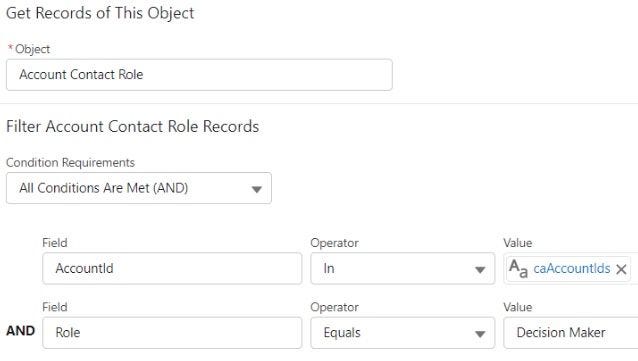
With the availability of these two query operators, we can now pull related records with fewer queries. Here’s an example from the Salesforce Winter ’23 release notes:
- Use a “Get Records” element to query Account records in California.
- Iterate over the Account records and populate a text collection with the Account IDs.
- Use the text collection (full of Account IDs) to query Account Contact Role records, pulling back only those records where the Account ID of the Account Contact Role is “IN” the Account IDs text collection.
The “Operator” field in this “Get Records” element shows the selection of “In” as the operator. The “caAccountIds” in the “Value” field is the text collection.
Update Related Records in Record-Triggered Flows
This straightforward but valuable feature allows the update of all records related to the triggering record or a subset of the related records based on filter criteria.
Here’s an example using a fictitious basketball team, “The Atlanta Old Dudes.” Each player on the Old Dudes has a preferred shoe brand (over-60 leagues get sponsorships too). Sometimes, a player’s shoe preference is fine, but other times, a team wants to unite around a single shoe brand and override player preferences.
Here’s how our simple flow makes this happen:
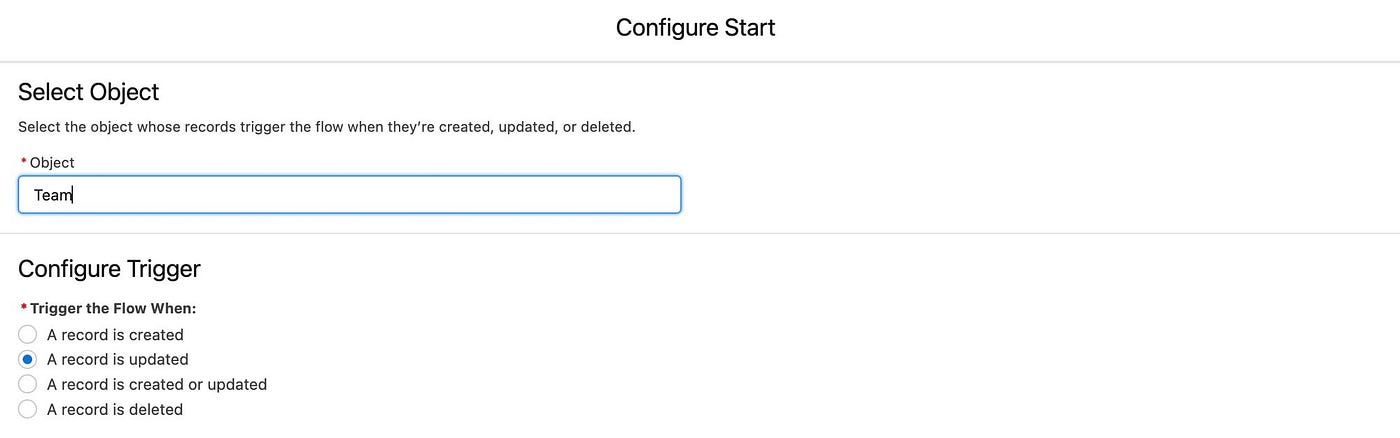
- Runs a record-triggered flow against a custom Team object when the team shoe brand changes.
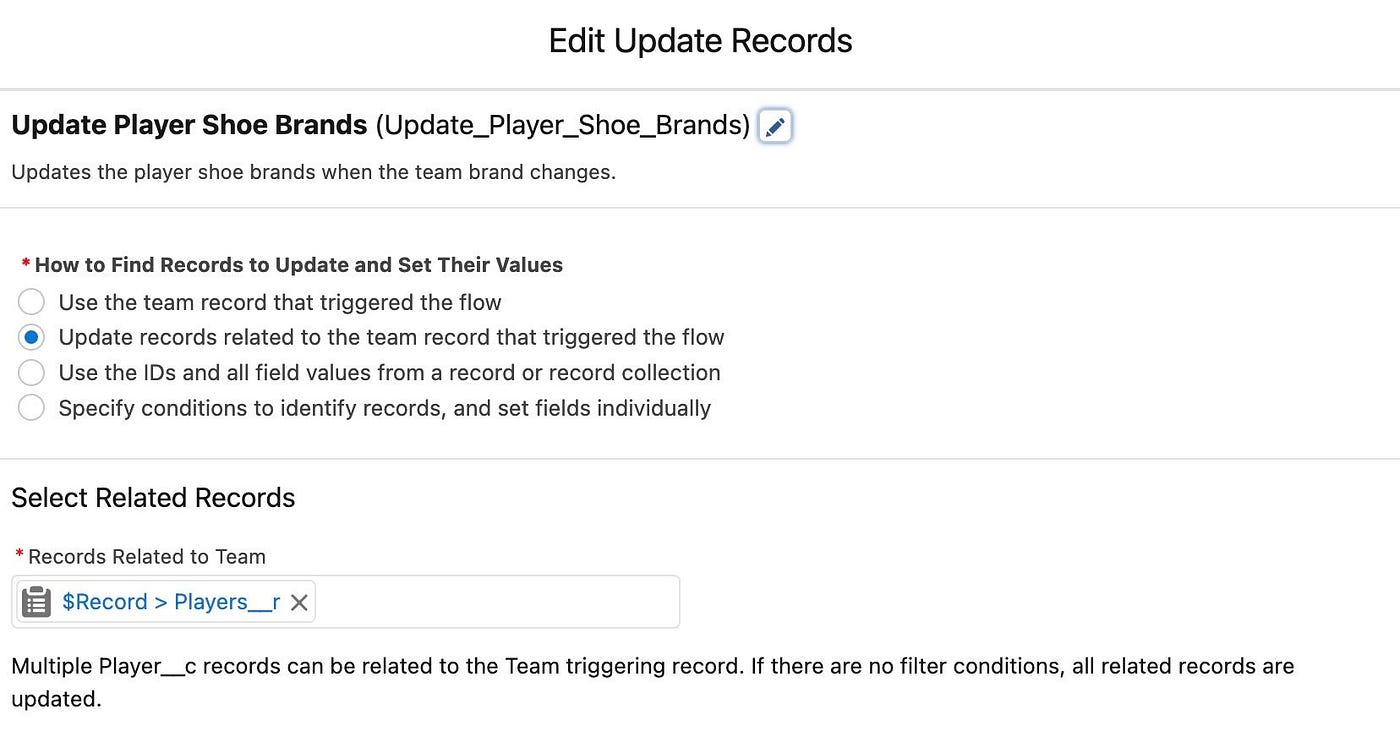
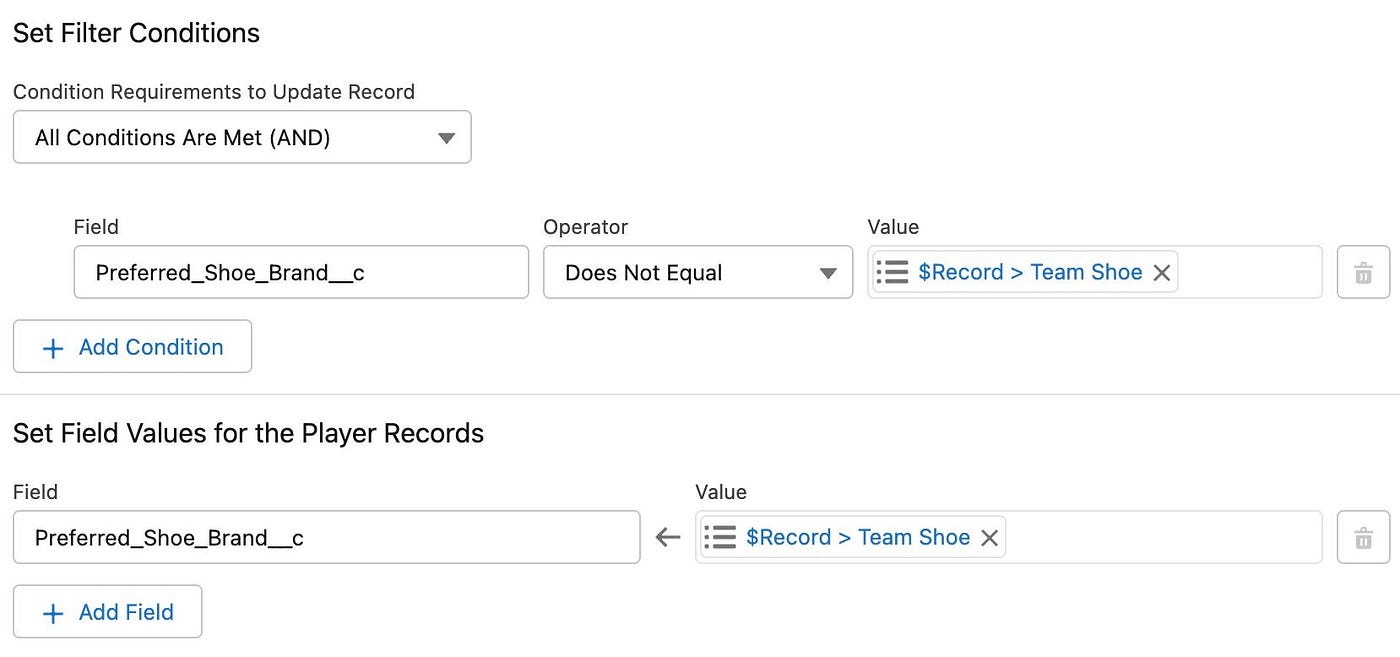
- Uses an “Update Records” element to override all player shoe preferences based on the team preference.
After creating a record-triggered flow, we choose the start record and the entry criteria for that record.
Next, select which records to update. In this case, we choose to update related records, specifically, the player records associated with the team record that triggered the flow.
Finally, set filter criteria for the related records that will be updated and then choose field values to populate on these related records.
Cut and Paste Flow Elements
Within auto-layout flows only, you can now cut and paste an element to reposition it within the flow. Just click an element and choose “Cut Element” from the menu options to cut.
A notification displays, indicating that you have cut the element to the clipboard. To paste the element in a new position, click the plus icon at any point within your flow.
With this improvement, you no longer need to copy and paste the element, change the API name, and then delete the previous element.
Up to Four Columns with the Section Component
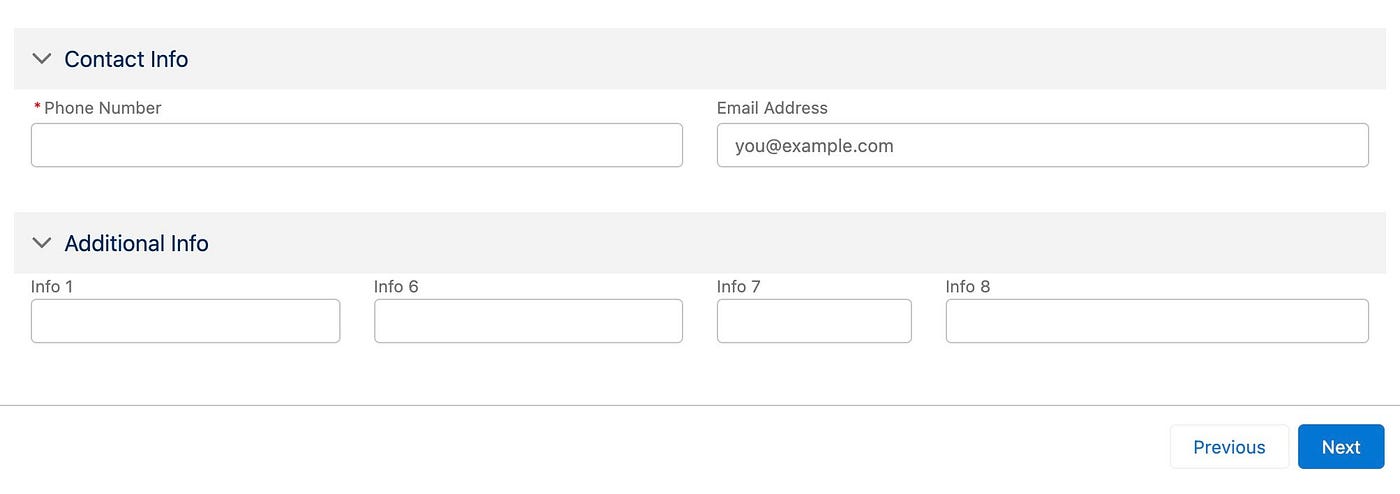
The Flow Builder section component now allows up to 4 columns to enhance the layout and usability of your screen flows. You can add multiple sections and choose a different number of columns for each. When interacting with your flow, an end-user can click on the section heading to expand or collapse that section.
To add a new section within a flow, search for “Section” under the components tab of the Flow Builder screen. Drag a section onto the flow screen and add the desired number of columns. Check the “Include Header” box and provide a header label to add expand/collapse functionality to the section. Here’s one example of a result with multiple sections with different numbers of columns.
Narrow Down Picklist Values by Record Type
Previous Flow Builder versions displayed all picklist values for a given object and field. When using Dynamic Forms for Flow in Winter ’23, picklist options are automatically filtered to show only values for the relevant record type. This filtering, of course, depends on the record type being set on entering the screen.
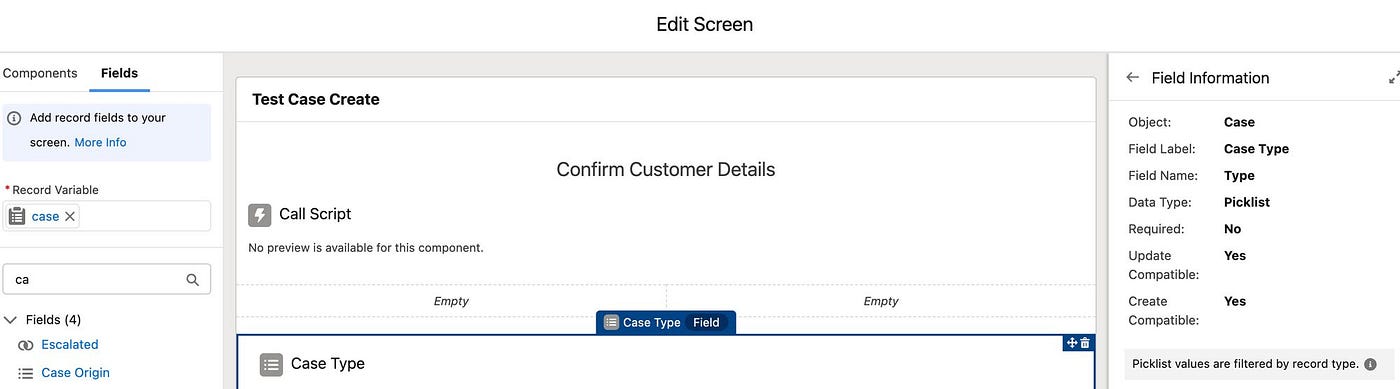
On the left of the Flow Builder screen, select the “Fields” tab to choose the fields related to a record variable. After dragging the field onto the flow screen, the “Field Information” section on the right indicates that the picklist values will be filtered by record type.
Launch a Screen Flow with a Lightning Web Component
To embed a flow in a Lightning Web Component, use the lightning-flow tag and reference the API name of your flow.
<template>
  <lightning-flow flow-api-name='My_Flow'></lightning-flow>
</template>
Summary
That’s a quick rundown of the most-useful Flow Builder enhancements in the Salesforce Winter ’23 release. There are a few other features that we didn’t cover here, so make sure to check out the Winter ’23 Flow Builder Release Notes.